

Once the FAQ search bar was live, Kestrel’s founder sent another link: a competitor’s help page with a coloured header, a search box in the middle, questions grouped by topic and a “Still have questions?” bar at the bottom. Can we have exactly this, as a new template, without touching the current FAQ page? A day later came the second request: and can you fill in all the content, so we don’t have to type it?
This case study covers both halves: the Shopify FAQ page template itself, and the less glamorous work of writing 41 answers that are actually true.
About this case study: it is a composite based on real Shopify project work. The brand name and some details have been changed. The section code, the limits we hit and the content problems are exactly as we handled them.
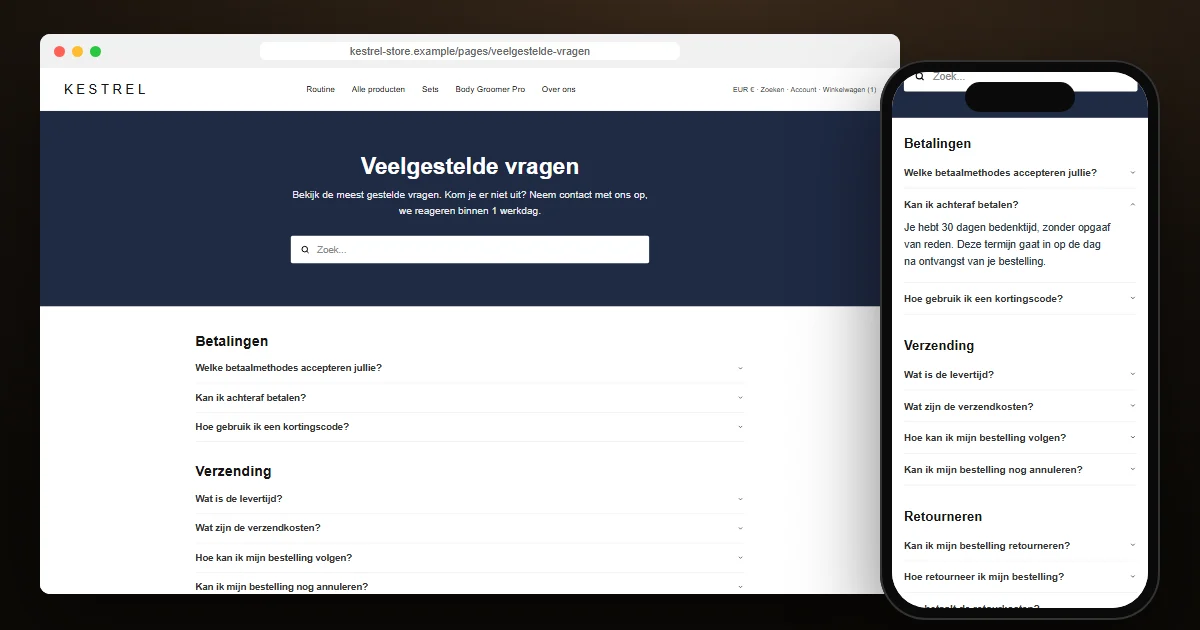
The project at a glance
| Deliverables | 1 new section, 1 new page template, no changes to existing files |
| Layout | Coloured header with search, categories with accordions, contact bar |
| Content | 7 categories, 41 questions, written from the store’s own policies |
| Structured data | FAQPage JSON-LD generated from the question blocks |
| Editing | Every heading, question, answer and colour editable in the theme editor |
A new template, so nothing else can break
The existing FAQ page used the theme’s own FAQ section, with a contact form beside it. Rather than rebuild that, we created a separate section, faq-page.liquid, and a page template, page.faq-2.json, that uses it. The merchant assigns the template to a page in the admin. The old page keeps working until they decide to switch, and switching back is one dropdown.
How the section is built
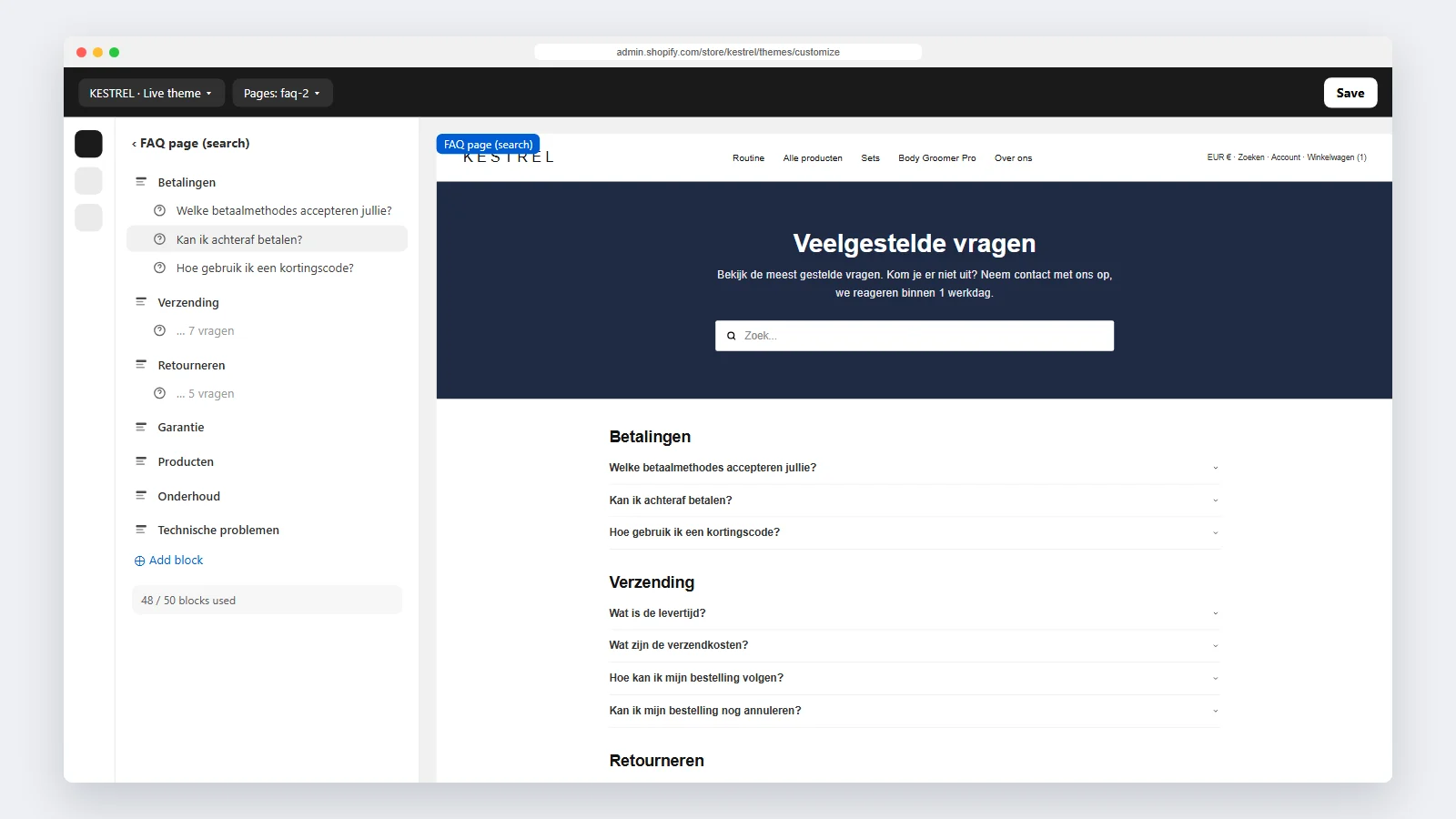
The section has two block types, Category and Question, in one flat list. In the theme editor that is easy to reason about: every question belongs to the category above it, and dragging a block moves it between categories. In Liquid, a small loop opens a new group at each category and closes the previous one:
{%- for block in section.blocks -%}
  {%- case block.type -%}
    {%- when 'category' -%}
      {%- unless forloop.first -%}</div>{%- endunless -%}
      <div class="faqp__group" data-faqp-group>
        <h2>{{ block.settings.title | escape }}</h2>
    {%- when 'question' -%}
      <details class="faqp__item" data-faqp-item>…</details>
  {%- endcase -%}
  {%- if forloop.last -%}</div>{%- endif -%}
{%- endfor -%}- Native accordions. Each question is a
<details>element, so opening and closing needs no JavaScript and works with the keyboard. - Search built in. The same filtering logic as the earlier snippet, but scoped to the section and looking up its items at search time.
- FAQPage structured data. The section writes JSON-LD from the question blocks, so the markup always matches what is on the page.
- Settings, not code. Header colours, text colour, button colour, placeholder, empty-state text and the contact button are all theme-editor settings.
The limit nobody mentions: 50 blocks
Our first content draft had 7 categories and 49 questions: 56 blocks. Shopify allows at most 50 blocks in one section, and a template with more will not save. Categories count as blocks too.
We cut the content to 41 questions, 48 blocks in total, which leaves the merchant room for two more. Choosing what to cut turned out to be easy, for a reason the next section explains. Stores that need more than 50 entries can add a second instance of the section to the same template, for example one for orders and one for products.
Writing 41 answers that are true
The merchant asked us to fill the page with content “like theirs”. Copying another company’s help texts was never an option. Their policies are not this store’s policies, and their wording is theirs. Instead, every answer was written from the merchant’s own sources: the refund policy, the shipping policy, the warranty page, the product pages and the payment methods shown in the footer.
Doing that carefully exposed something the merchant had not noticed. Their own store contradicted itself in four places:
| Free shipping | from €70 in the old FAQ, from €30 on product pages and in the site bar |
| Return period | 30 days in the refund policy, 90 days in the old FAQ and on product pages |
| Return costs | paid by the customer in the policy, “free returns” on product pages |
| Battery life | 120 minutes in a product bullet, 90 minutes in the product’s own FAQ |
We did not pick an answer silently. Where a legal policy existed, the FAQ followed it, and the merchant got a short list of every conflict with the choice we made, so they could decide and fix the source pages too. We also removed two answers we could not confirm anywhere on the site, rather than guess. That is what made the 50-block cut easy.

Content as a file, not as clicks
Typing 48 blocks into the theme editor is slow and error-prone. We kept the questions in a small content file and generated the template JSON from it with a script. When the merchant decides on the contradictions, regenerating the template takes seconds. After installation, every answer can still be edited normally in the theme editor.
Installing it
- Create the section
faq-pagein the code editor and paste the section file. - Create a page template named
faq-2(JSON) and paste the template file. The section must exist first, because the template refers to it. - Open the FAQ page in Online Store → Pages and choose the
faq-2template.
What we would do on any FAQ project
- Write from the policies, not from memory or from a competitor.
- Look for contradictions before publishing. A FAQ that disagrees with the refund policy creates the support tickets it was meant to prevent.
- Plan the 50-block limit before writing content.
- Keep content in a file you can regenerate, then hand over a template the merchant edits like any other.
Want a help-centre page like this, or a FAQ that actually answers your customers? See our Shopify theme development service or get in touch.
Frequently asked questions
Can I build a Shopify FAQ page without an app?
Yes. A custom section with category and question blocks, native accordions and a small search script covers what most FAQ apps do, without a monthly fee or extra scripts on every page.
Will FAQ structured data give me rich results in Google?
Since 2023, Google shows FAQ rich results mainly for well-known government and health websites. The structured data is still valid and helps search engines understand the page, but most stores should not expect the expandable FAQ snippet.
How many questions can one FAQ section hold?
A Shopify section can hold up to 50 blocks, and categories count as blocks. For more, add a second FAQ section to the same template.
Can my team edit the questions later?
Yes. Every category, question and answer is a block in the theme editor. Adding, removing or reordering them needs no code.