

Most small agencies and freelancers invoice in one of two ways. Either a spreadsheet and a Word template that someone exports to PDF by hand, or a hosted invoicing service billed per user, per month, forever. The first breaks the moment two people touch it. The second works well until you add a teammate, a second currency, or a client who needs something the product was never designed to do.
We had both problems, so we built our own WordPress invoice plugin: ArtinTech Invoice Manager. It runs as a full-screen app on a WordPress site. It creates professional invoices with one-click PDF export, keeps a client book with balances, tracks payments across currencies, and has an admin panel for managing the people who use it. It is live on this site, and it is the tool we now invoice our own clients with.
This article is the full build log. It covers what the plugin does, how it is built and why, the security model, the bugs we found before our clients did, and what it took to get the code ready for the WordPress.org plugin directory. If you are deciding whether to build a custom invoicing tool or use an existing one, the last sections are written for you.
Why we built our own WordPress invoice plugin
Building software you could rent is usually a mistake, so it is worth being precise about why it was not one here. The deciding factors were practical, not ideological.
- The data should live with the business. Invoices, client addresses and payment history are the financial record of a company. Keeping them in the same WordPress database we already back up and control is simpler than trusting a third party’s export button on the day we need it.
- Per-seat pricing scales against you. A hosted tool that is cheap for one person becomes a real line item once a small team and a few collaborators need their own logins. A plugin costs the same whether one person uses it or twenty.
- Several independent account holders, one installation. We needed each person to have their own invoices, clients, logo, bank details and numbering, completely isolated from everyone else, on one site.
- Our invoices are international. We bill clients abroad, in more than one currency. We needed totals per currency, never silently converted, and invoices that print bank details for cross-border transfers.
- We wanted to change it. When we needed a “Mark as paid” button or a switch to hide a client’s logo, we wanted it the same afternoon, not on a vendor’s roadmap.
None of this makes hosted invoicing software bad. It makes it a different trade-off, and it helps to see the two side by side.
| Hosted invoicing service | Self-hosted WordPress invoice plugin | |
|---|---|---|
| Where the data lives | The vendor’s servers | Your own WordPress database |
| Cost as the team grows | Usually rises per user | Flat, whatever the number of users |
| Setup effort | Minutes | Install, activate, create the app page |
| Customisation | What the settings screen allows | Anything the code can do |
| Maintenance | Handled by the vendor | Your responsibility, like any plugin |
| Integrations | Often a large catalogue of ready-made connectors | Built as needed against your own stack |
If the right-hand column reads like a list of chores, a hosted tool is probably the better choice for you. If it reads like a list of things you already do for your website anyway, a plugin starts to make sense.
How it works: from installation to a paid invoice
Before the details, here is the whole workflow end to end: what an administrator does once, and what an account holder does every time they bill a client. Nine steps, each shown on the real interface.
Step 1: Install the plugin and create the app page
- Upload the plugin under Plugins → Add New → Upload Plugin and activate it.
- Open the new Invoice Manager menu in wp-admin.
- Click Create app page.
This publishes a page at /invoice-manager/, and that page becomes the application. Nothing else on the site changes. Administrators can use the app straight away.
Step 2: Log in, or let people sign up
The app page shows its own login screen to anyone who is not signed in. People log in with their normal WordPress username or email, and there are “Remember me” and “Forgot password” links.
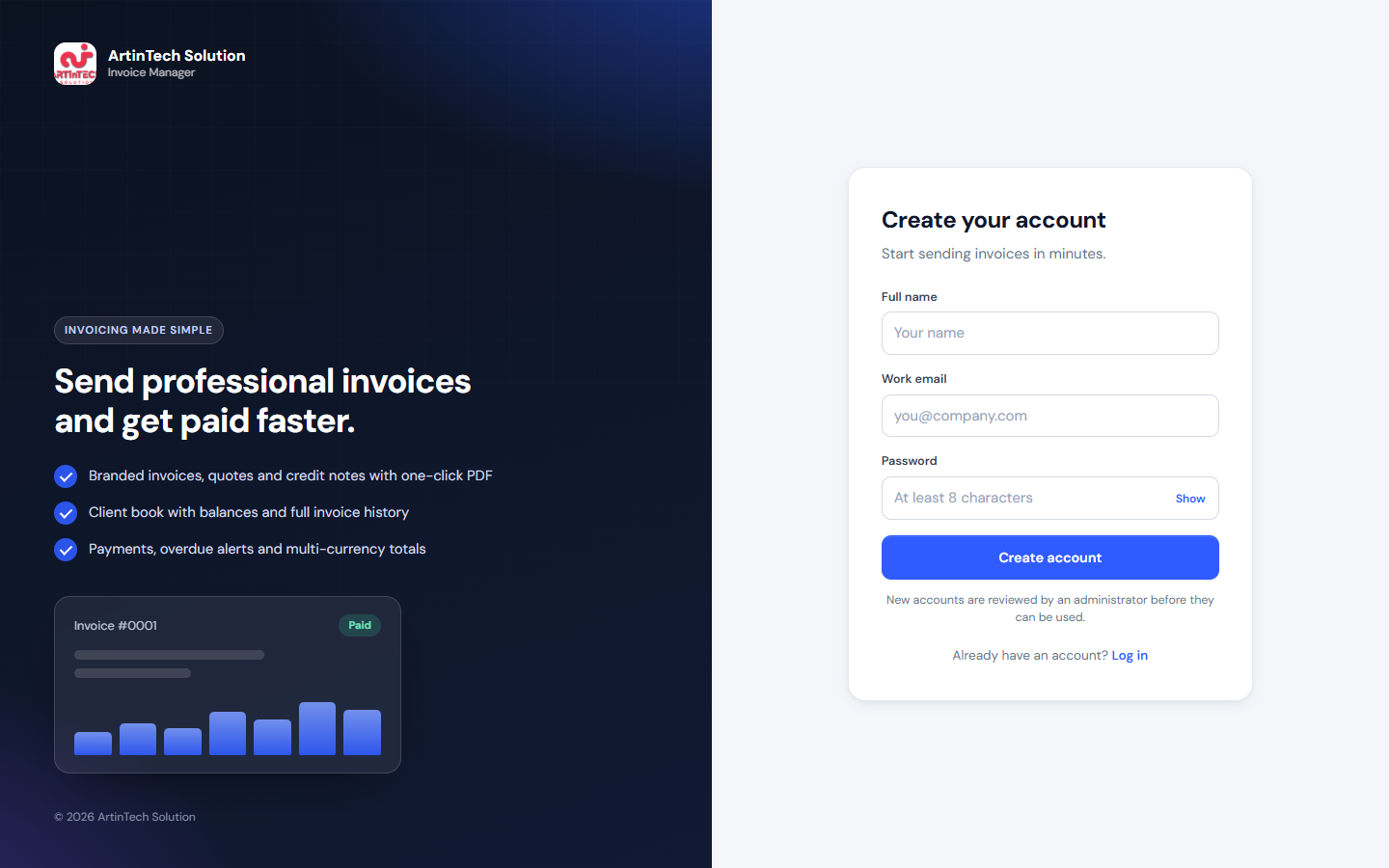
If you enable public sign-ups, a Create one link appears under the login form and opens the sign-up screen. With admin approval switched on, a new account stays pending until an administrator approves it.
Step 3: Set up your business details once
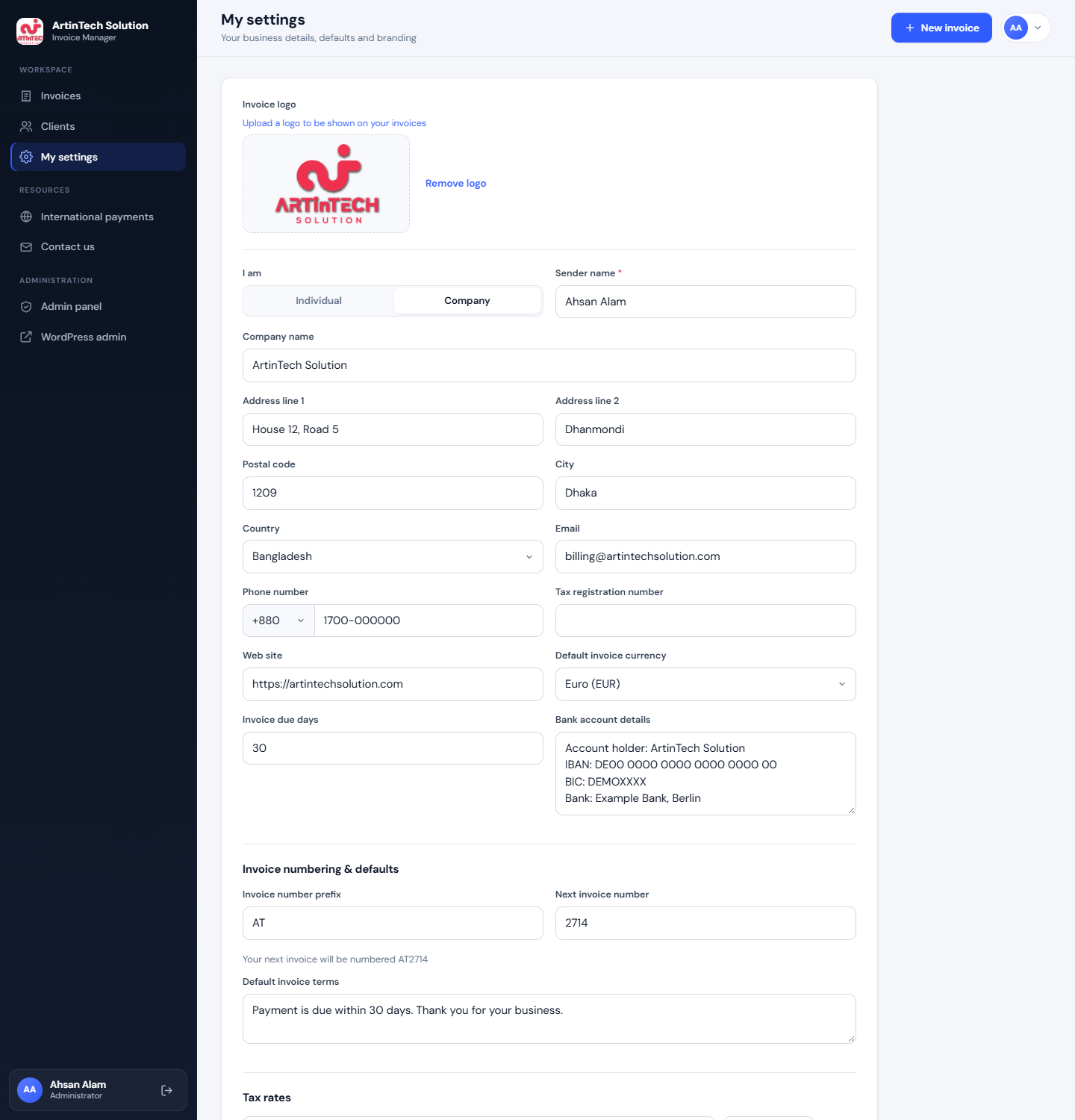
Every account holder starts in My settings:
- Upload a logo, then choose individual or company.
- Enter your address, contact details and tax number.
- Pick a default currency and payment terms.
- Paste in your bank details.
- Set an invoice prefix and starting number, and add your own tax rates.
Everything here is filled into new invoices automatically, so you type it once.
Step 4: Add your clients
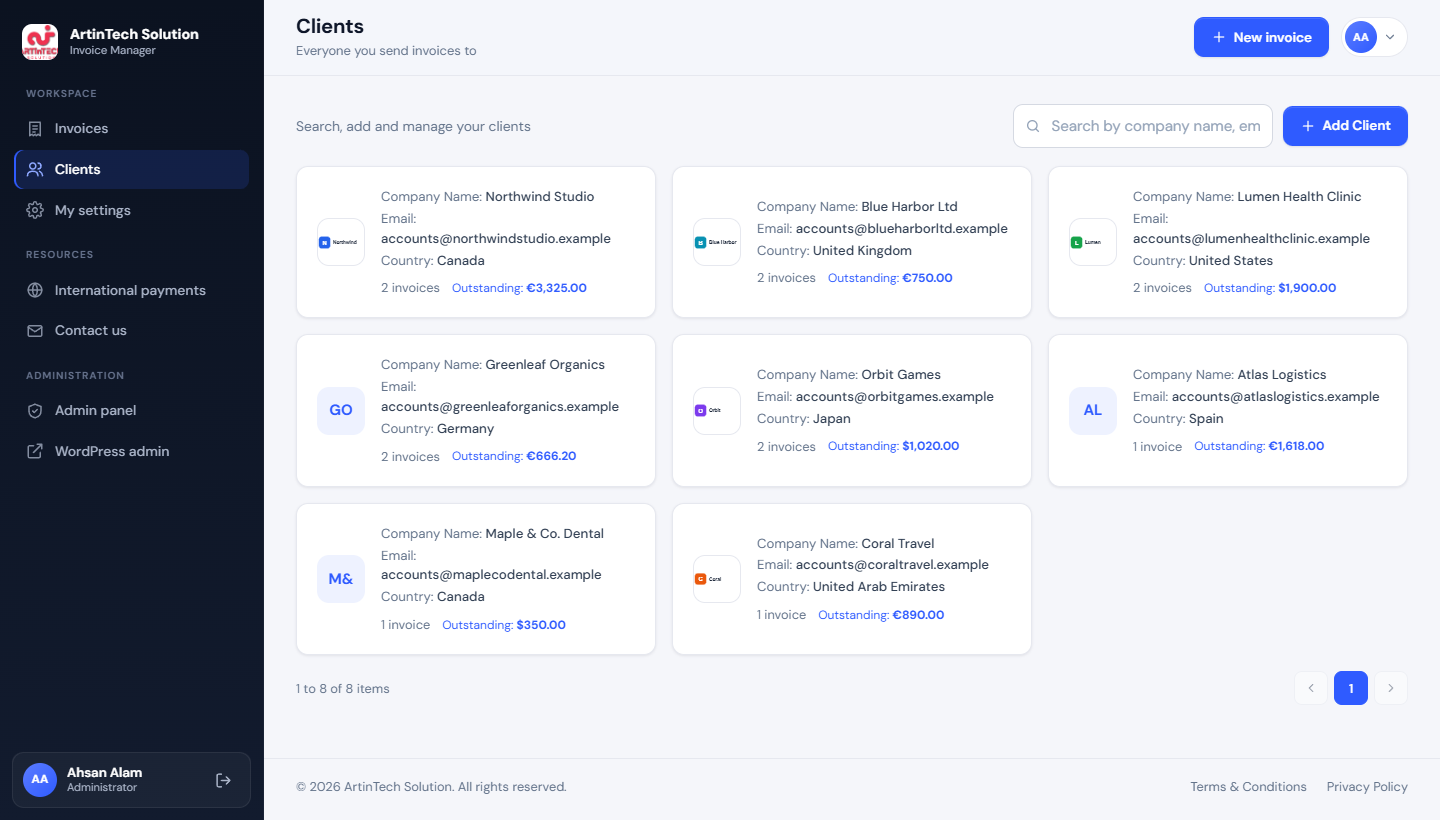
Under Clients → Add Client, save each client once: logo, company and contact names, email, phone, address and tax number. The client book is searchable, and each card shows how many invoices a client has and what they still owe.
Step 5: Create the invoice
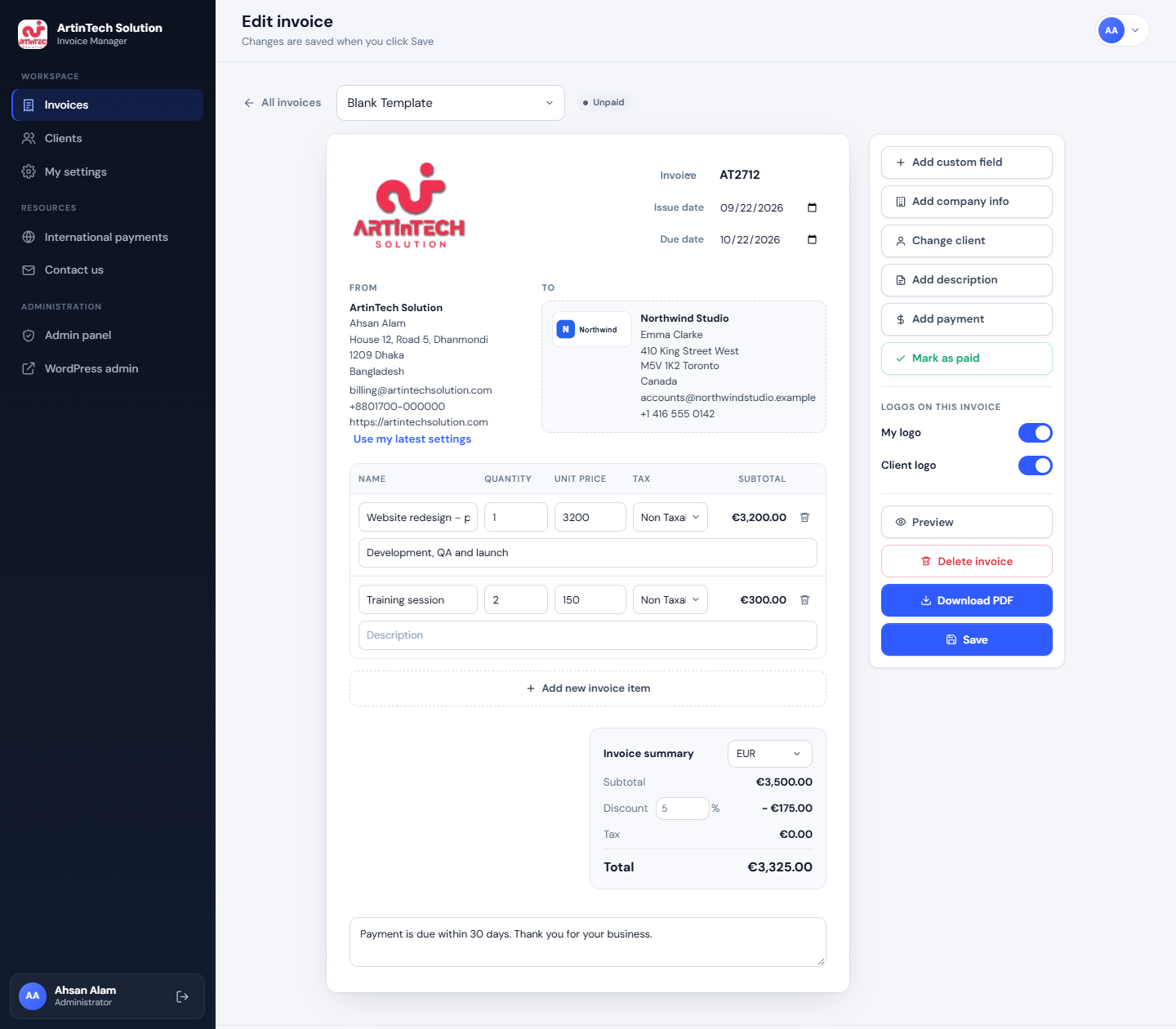
Click New invoice. The number, dates, currency, terms and your details are already filled in.
- Pick the client.
- Add line items with quantity, price and tax.
- Apply a discount if you need to, and add custom fields, such as a purchase order number.
- Choose whether your logo and the client’s logo appear on this invoice.
- Click Save.
Totals recalculate as you type.
Step 6: Preview it and download the PDF
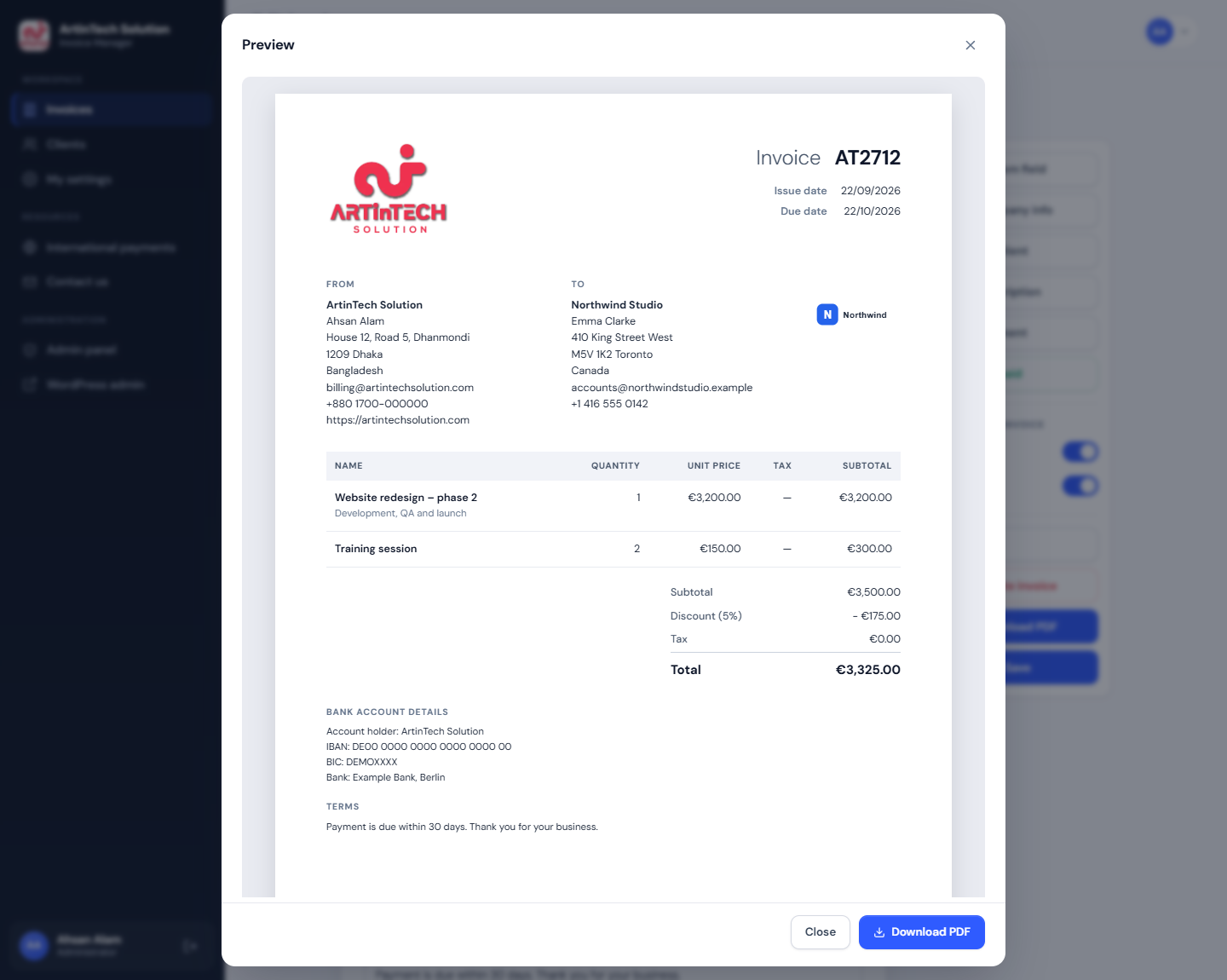
Preview shows the invoice exactly as the client will receive it. Download PDF saves an A4 file you can email, upload to a client portal or print.
Three templates are available, set per invoice from the editor’s template menu:
- Blank: a clean, minimal layout.
- Modern: a coloured header band.
- Classic: a serif typeface with ruled lines.
Step 7: Record the payment
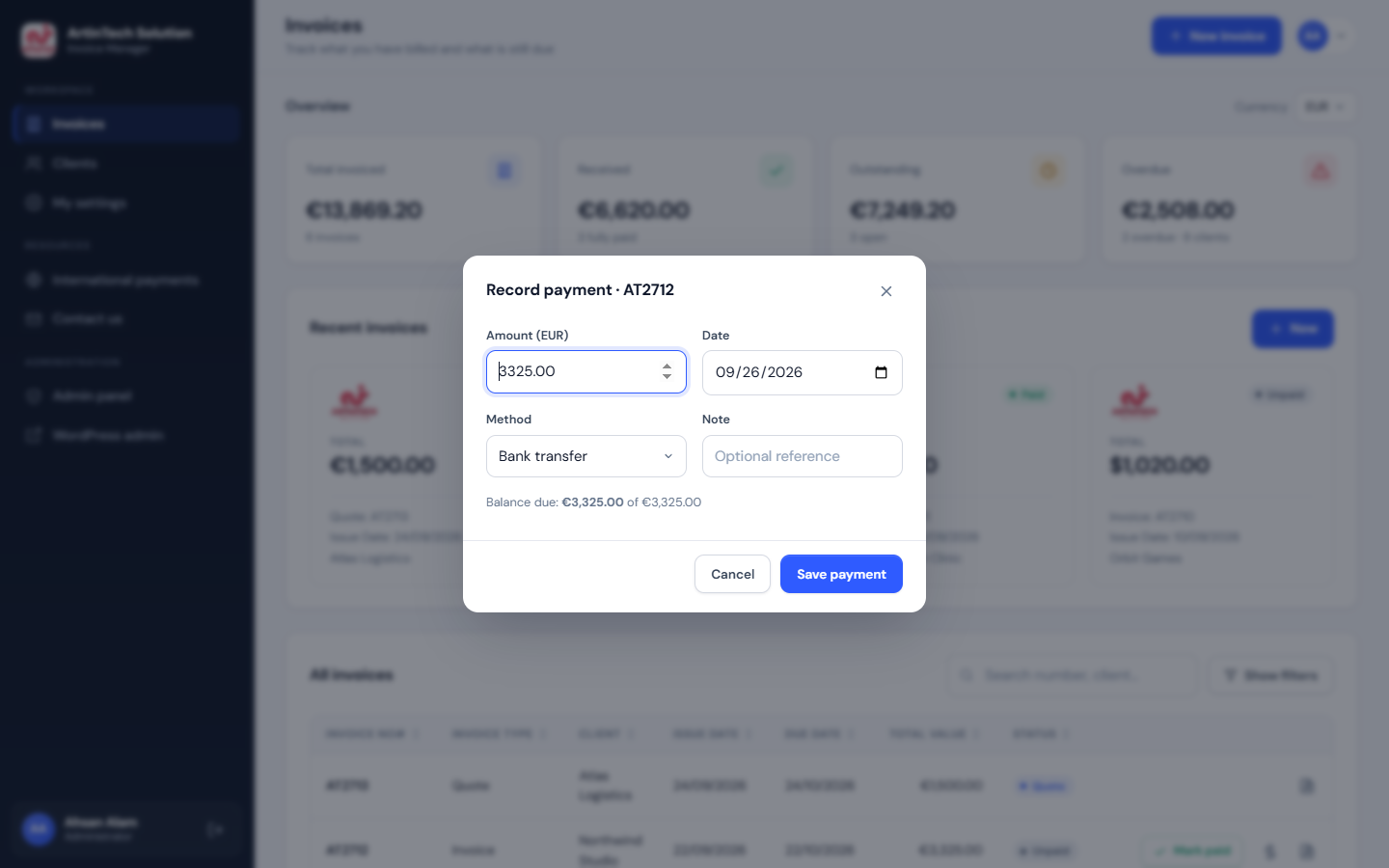
When the money arrives, click Mark paid on the invoice’s row, or the $ icon to record a partial payment, with its date, method and a reference. The status changes on its own:
- Partially paid after an instalment.
- Paid once the balance reaches zero.
- Overdue if the due date passes before the invoice is fully paid.
Step 8: Track what is still owed
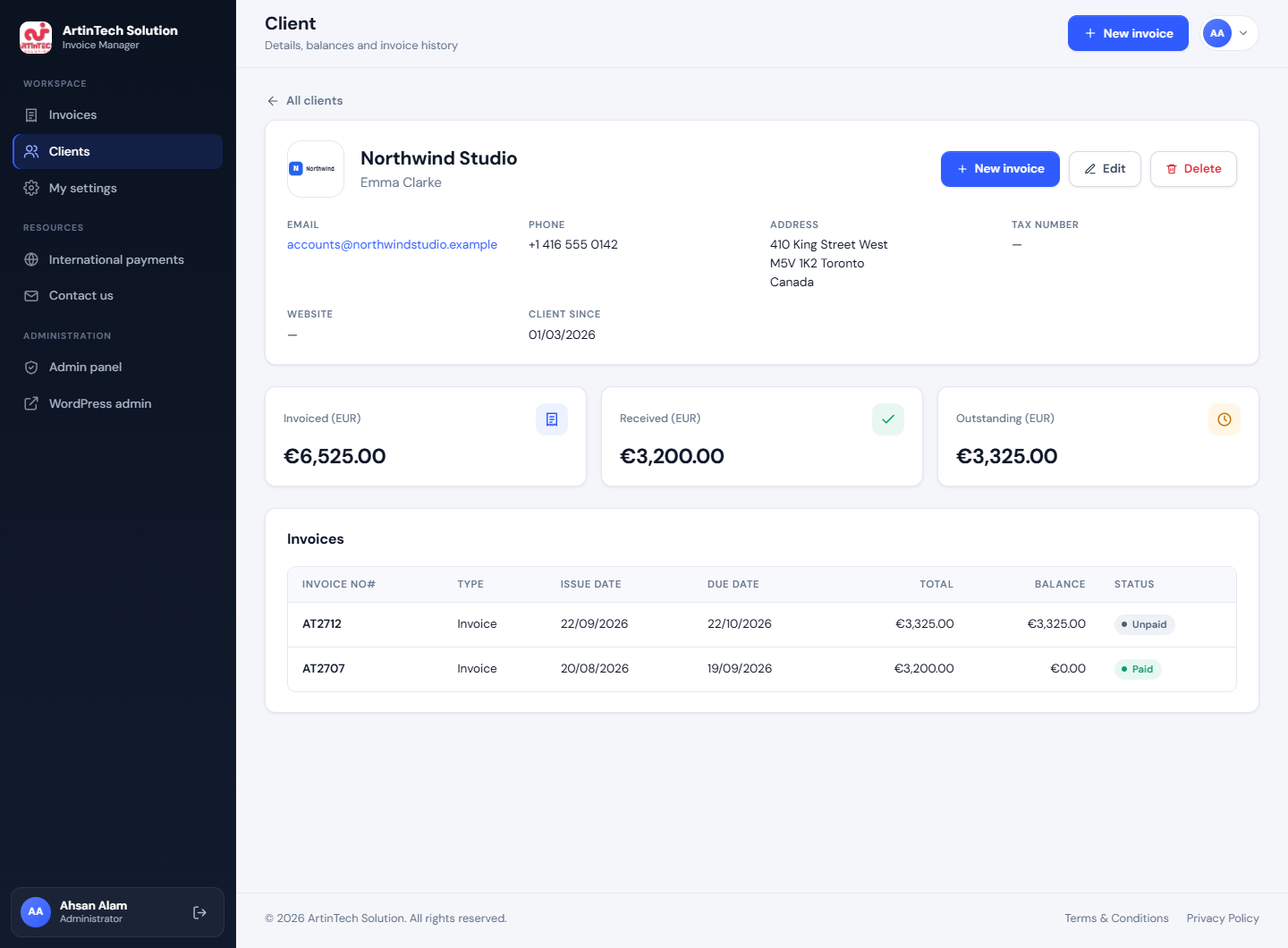
The dashboard totals update immediately. For a single customer, open their page in the client book to see:
- Everything invoiced, received and outstanding, per currency.
- Every invoice you have sent them.
This is the screen to open before a follow-up call.
Step 9: Manage the people who use it
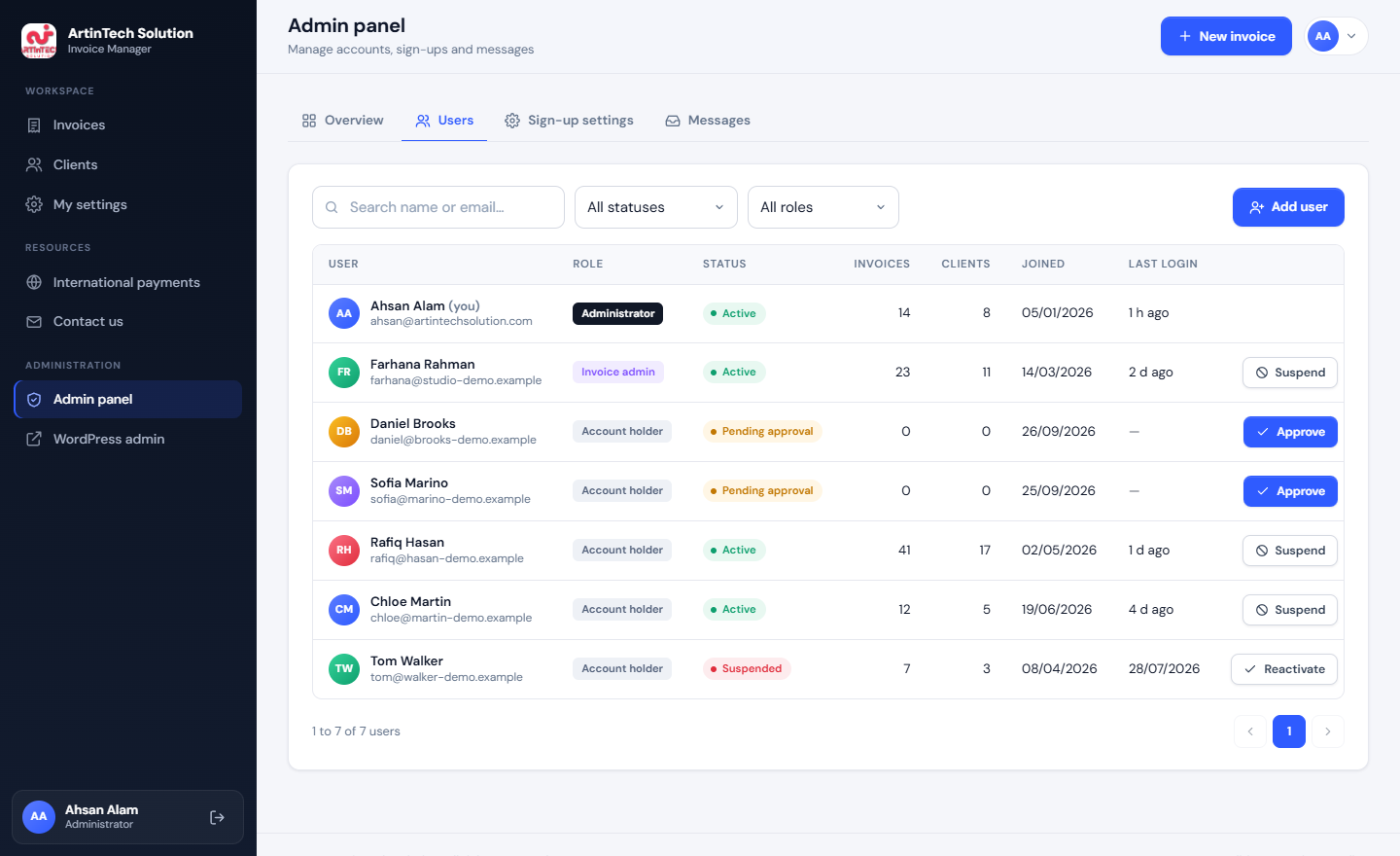
Administrators, and anyone given the Invoice Manager Admin role, open Admin panel → Users. From there they can:
- Approve pending sign-ups, and the user is emailed automatically.
- Suspend or reactivate accounts.
- Add users directly. The new user gets an email to set their password.
- Change roles and delete accounts.
What the plugin does: a feature tour
The workflow above shows the main path. This tour covers the rest of what the plugin can do. Everything runs inside one page of the site, in an interface designed to feel like a standalone application rather than a WordPress screen.
The invoices dashboard
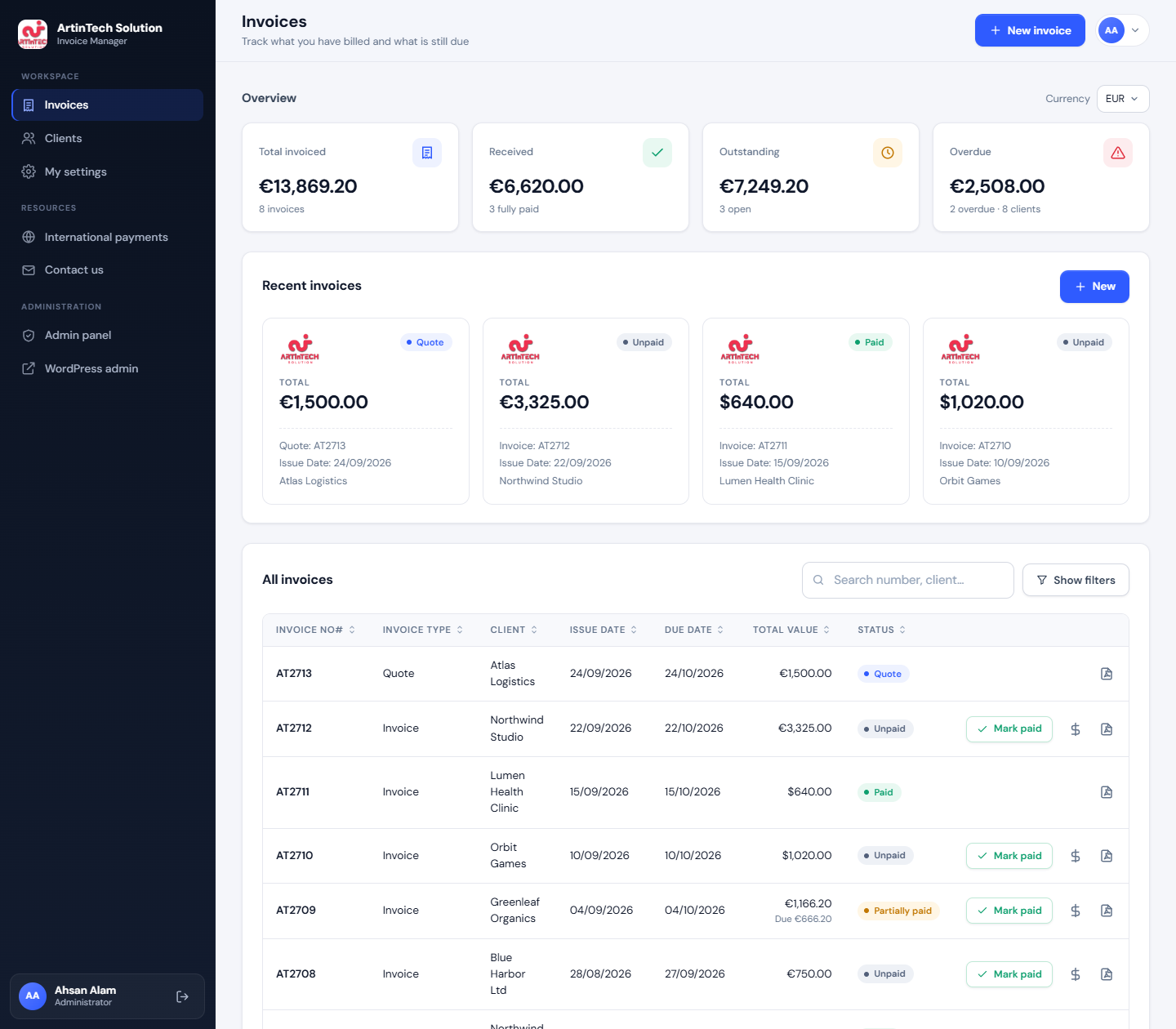
The landing screen answers the question every business owner opens an invoicing tool to ask: who owes us what? Four figures sit at the top: total invoiced, received, outstanding and overdue. Each one is calculated separately for every currency, with a switcher when an account holder bills in more than one. Below them are the four most recent invoices as cards, then the full invoice list.
The list can be searched by invoice number or client name. You can filter it by client, status, document type and date range, and sort it by any column. From each row you can record a payment, mark the invoice as paid, download its PDF, duplicate it or delete it, without opening it.
The invoice editor
The editor is laid out like the finished document, so what you type is where it will appear. The right-hand panel holds the actions.
- Four document types: Invoice, Quote, Proforma and Credit Note.
- Automatic numbering with a per-user prefix, such as AT2623. The number can still be edited, and duplicates are rejected.
- Issue and due dates. The due date is filled in from each person’s default payment terms.
- Line items with quantity, unit price, a description and a tax rate chosen from the user’s own list of rates.
- An invoice-level discount, custom fields such as a purchase order number, extra company information and a free-text description.
- Client details, picked from the client book or typed in for a one-off, with an option to save a new client on the spot.
- A currency selector for each invoice, and terms text that is pre-filled from settings.
Totals update as you type. If you try to leave with unsaved changes, the app asks before discarding them. That small detail matters more in an invoicing tool than almost anywhere else.
Payments, statuses and “Mark as paid”
Nobody sets an invoice’s status by hand. It is derived from the payments recorded against it, so it can never disagree with the money.
| Payments recorded | Status shown |
|---|---|
| None | Unpaid |
| Less than the total | Partially paid |
| Equal to or more than the total | Paid |
| Not fully paid and the due date has passed | Overdue |
| Document type is Quote | Quote (never counted as income) |
Each payment has a date, an amount, a method and an optional note, so instalments and bank-fee shortfalls can be recorded accurately. For the most common case, where the client simply paid, there is a one-click Mark as paid button. It records a single payment for the remaining balance, dated today.
PDF export and templates
Every invoice can be previewed and downloaded as an A4 PDF in one of three templates: a clean Blank layout, a Modern layout with a coloured header band, and a Classic serif layout with ruled lines.
The PDF includes:
- The sender’s logo and the client’s logo. Each can be switched off for an individual invoice.
- Both addresses.
- The line items, discount, tax and total.
- Any payments received, the balance due, bank details and terms.
The client book
Clients are stored once and reused. Each has a logo, company and contact names, address, tax number and notes.
The client list shows what each client still owes, and a client’s own page shows:
- Totals invoiced, received and outstanding for each currency.
- Their full invoice history.
- A button that starts a new invoice with the client already filled in.
Personal settings for every account holder
Each user has their own:
- Logo, and a choice of individual or company identity.
- Address and phone number with an international dialling code.
- Tax registration number and website.
- Default currency and payment terms in days.
- Bank details, invoice number prefix and next number.
- Default terms text and a list of named tax rates.
Two people on the same site can therefore issue invoices that look like they come from two different businesses, because they do.
Sign-ups, approvals and the admin panel
The app has its own login and sign-up screens on the front end, so account holders never need to see wp-admin. Public sign-up is optional. When it is on, new accounts can require an administrator’s approval before they can be used, and the administrator is emailed about each sign-up.
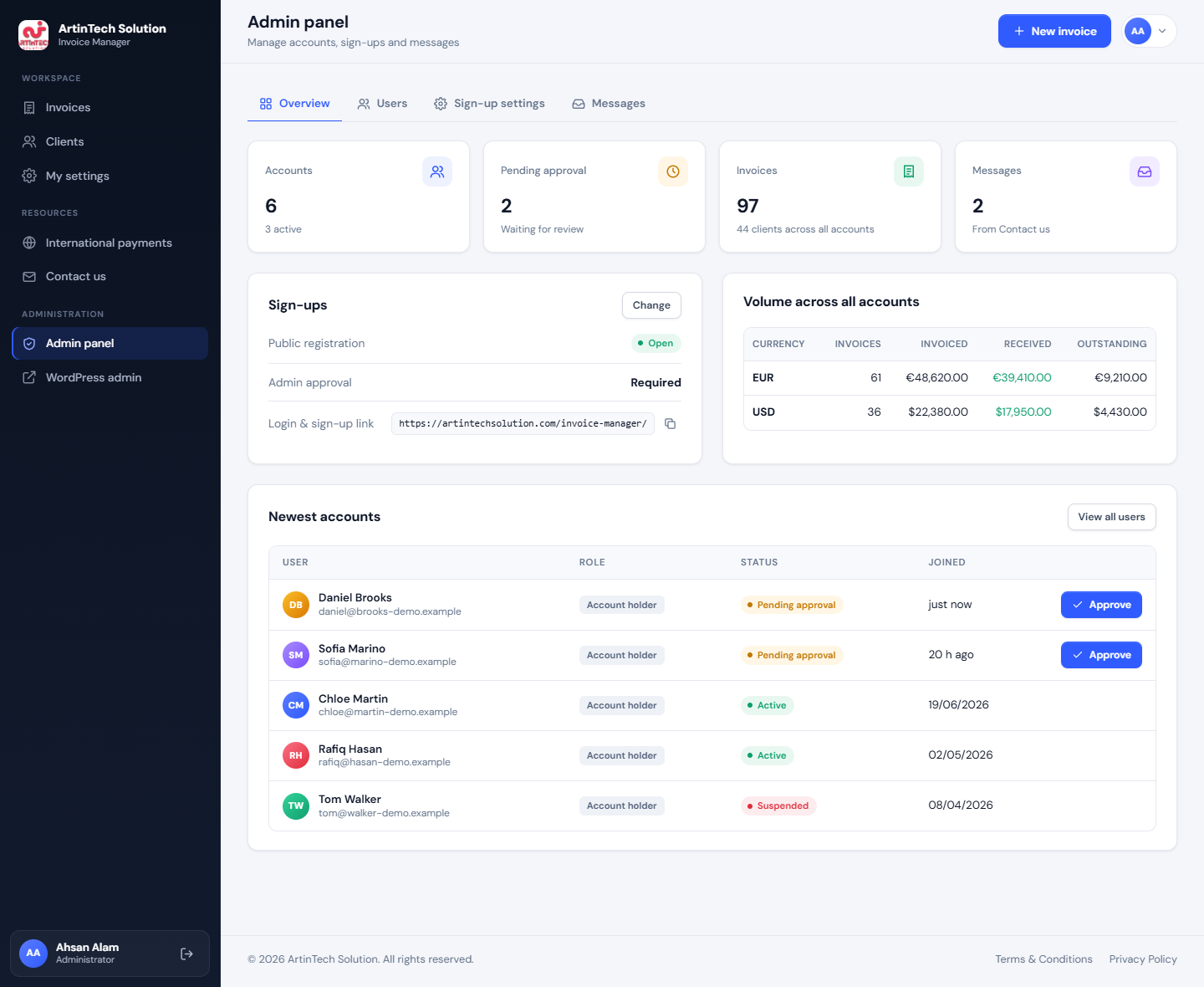
Inside the app, administrators get an Admin panel with four sections:
- Overview: account counts and invoice volume across all users.
- Users: approve, suspend, reactivate, add or delete accounts and change roles.
- Sign-up settings.
- Messages sent from the in-app “Contact us” form.
Architecture: how a WordPress invoice plugin should store its data
Most of the long-term quality of a plugin is decided by its data model, because the data model is the one part you cannot easily change once real invoices exist. We made four decisions early, and all four held up.
Custom post types, not custom tables
Invoices, clients and contact messages are private custom post types. Each record is owned by the WordPress user who created it, and the structured data is kept in a single post-meta entry. Personal settings live in user meta, and plugin-wide options use the Options API.
Custom database tables would have been marginally faster at very large volumes. In exchange, post types give us a lot for free:
- Standard WordPress backups and migrations include the data automatically.
- Export tools already understand it.
- The object cache works without extra code.
- Deleting a user can take their records with them without a line of cleanup code.
An invoicing tool for a business rarely holds more than a few thousand invoices per person. At that scale, the native approach is the right one.
The post types are registered as fully private: not public, not queryable, excluded from search, and hidden from the REST API and sitemaps. An invoice cannot leak into a theme’s search results or an SEO plugin’s sitemap by accident.
Snapshots: why an invoice copies the sender and the client
An invoice is a legal record of a moment in time. If you move office next year, last year’s invoices must still show last year’s address. So when an invoice is created, the plugin copies the sender’s details into it, and it does the same with the client’s details.
Changing your settings or a client’s address never rewrites history. When you do want an old draft to pick up new details, the editor offers a deliberate “Use my latest settings” action instead of doing it silently.
The invoice also keeps a link to the client record, which drives the per-client balances. When a client is deleted, the link is cleared but the snapshot stays. The invoice still reads correctly, and it simply stops counting towards a client that no longer exists.
Status is computed, never stored
“Overdue” depends on today’s date, so storing it would make it wrong by tomorrow. The plugin stores the facts: the items, discount, payments and due date. It computes the status every time an invoice is read. A stored status field is one of the most common sources of “the dashboard says paid but the bank says otherwise” in business software.
Money maths that an accountant would sign off
- Discount is applied before tax. A 10% discount reduces both the subtotal and the tax charged on it, which is how most tax regimes expect it.
- Tax is per line. Each item carries its own rate, so a single invoice can mix taxable and non-taxable work.
- Credit notes count as negative in every total, and quotes count as nothing.
- Currencies are never converted. Totals are kept per currency. Silently converting at some exchange rate would produce numbers that match neither the invoice nor the bank.
- Totals are recalculated on the server from the line items when an invoice is saved. The browser’s arithmetic is only for display, and a manipulated request cannot store a total that doesn’t add up.
A REST API with an ownership check on every request
The front end talks to WordPress through a dedicated REST namespace. Every route passes through the same permission check. The request must come from a logged-in user with the plugin’s own capability and an active account status, and it must carry a valid WordPress nonce.
On top of that, every request that names an invoice or client checks that the record belongs to the current user. If it does not, the API answers not found rather than forbidden. The distinction is deliberate: “forbidden” confirms that a record with that ID exists, “not found” reveals nothing. We test this explicitly, by asking for one account’s invoice while logged in as another.
Every incoming field is sanitised and length-limited:
- Dates must match a strict format.
- Currencies must be three letters.
- Document types and templates must come from a fixed list.
- Logos are accepted only as images already uploaded to the site’s own media library.
Uploaded images are decoded and checked for being real PNG, JPEG, GIF or WebP files before they reach the media library. SVG is refused, because an SVG file can carry script.
One practical detail saved us future support tickets. Some shared hosts and firewall rules block HTTP PUT and DELETE requests outright. The app therefore sends every write as a POST with WordPress’s standard method-override header, which the REST API honours natively. The routes stay RESTful, and the requests survive restrictive hosting.
Accounts, roles and approvals
The plugin adds two roles and one capability model, and it never touches WordPress’s own roles beyond giving administrators access.
| Role | Can use the app | Can manage account holders | Can manage invoice admins and roles |
|---|---|---|---|
| Administrator | Yes | Yes | Yes |
| Invoice Manager Admin | Yes | Yes | No |
| Invoice Account Holder | Yes | No | No |
The middle role exists so an office manager can approve and support users without being given the keys to the whole website. Administrators can never be suspended or deleted from inside the app, and nobody can delete their own account there. Those are exactly the mistakes that lock people out of their own site.
Public sign-up is off until an administrator turns it on. Once it is on, the form is protected in four ways:
- A nonce.
- A hidden honeypot field that bots fill in and people don’t.
- A limit of five sign-ups per network address per hour.
- A minimum password length.
With approval enabled, a new account can log in but sees only an “awaiting approval” screen until an administrator approves it. The user is emailed at that moment. Suspending a user signs them out on every device immediately, by destroying their WordPress sessions, rather than waiting for a cookie to expire.
A full-screen app that the theme can’t break
An invoicing app has to look and behave the same on every site it is installed on. A theme’s button styles, a page builder’s resets or a caching plugin’s script optimiser can all break an application-style interface in subtle ways. So the plugin takes over rendering for its own page completely.
When a visitor opens the app page, the plugin serves its own minimal template instead of the theme. That template prints only the plugin’s own stylesheet and scripts, through WordPress’s standard style and script functions, and nothing from the theme or other plugins. The page also tells caches not to store it and search engines not to index it, since it is an application, not content.
The interface itself is written in plain JavaScript modules, with no framework, and bundled into a single readable file. Navigation uses hash-based routes, so switching between invoices, clients and settings never reloads the page, and the browser’s back button still works. The typeface, DM Sans, is bundled with the plugin rather than loaded from a font service, so the app makes no requests to third-party servers.
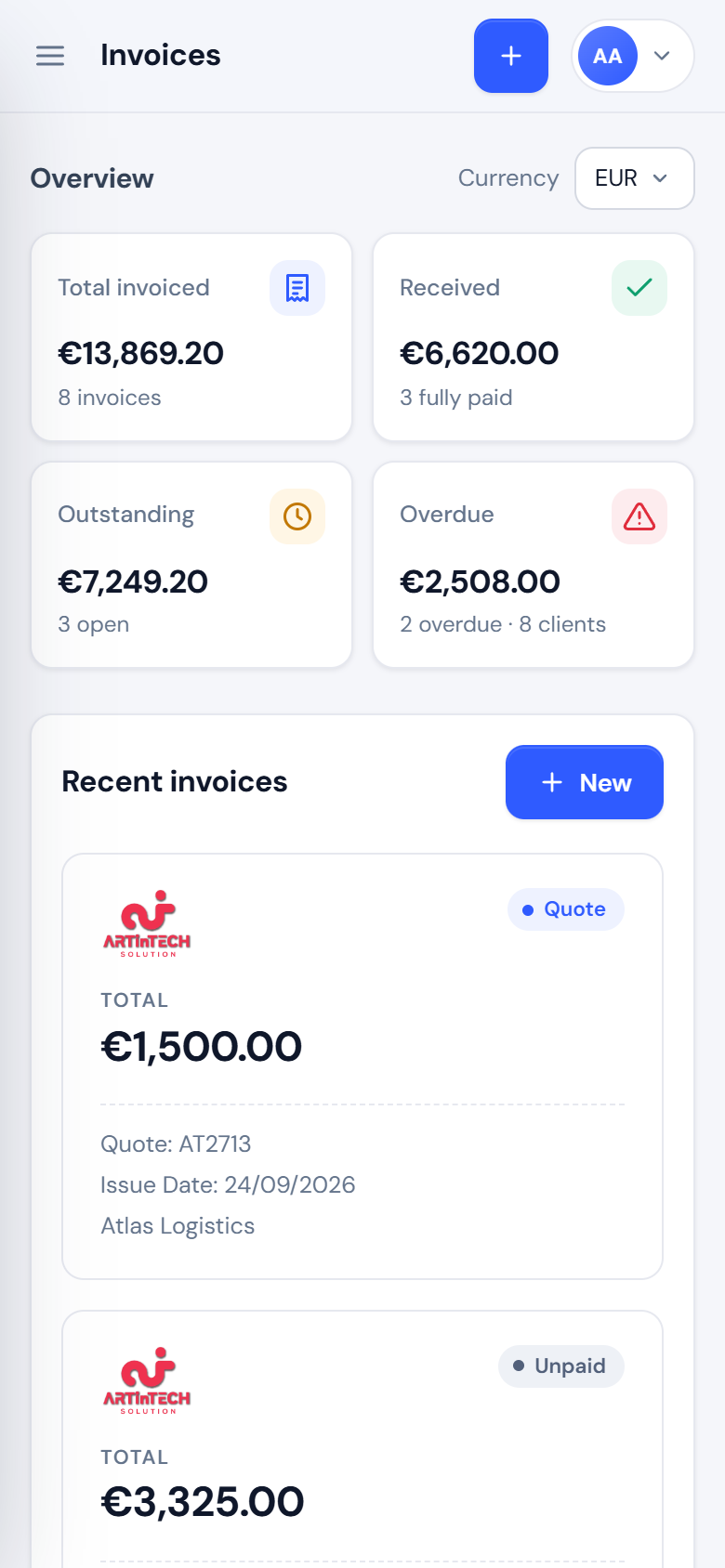
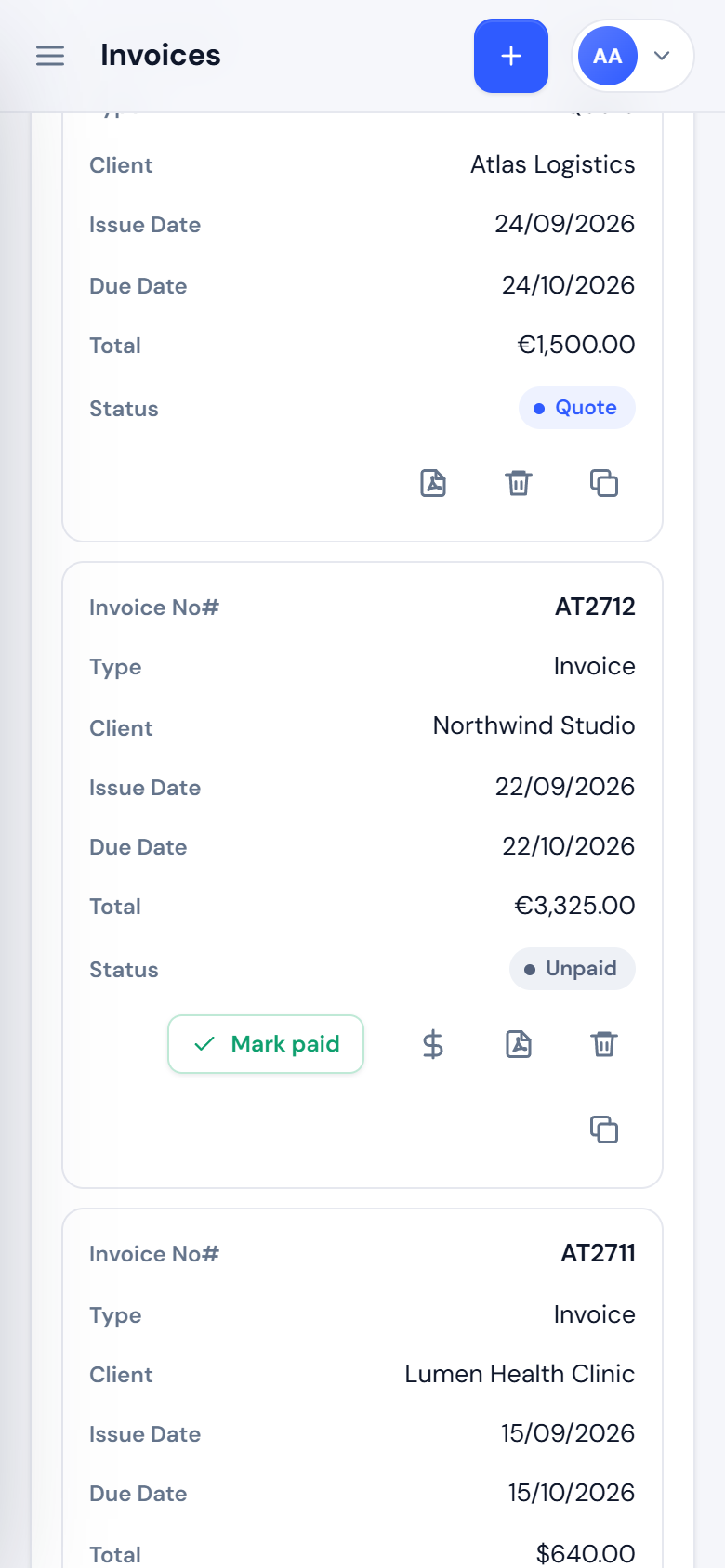
The layout was designed for phones from the start. On small screens:
- The sidebar becomes a slide-out menu.
- Data tables turn into stacked cards, with a label on every value.
- The invoice editor re-flows into a single column.
Invoices often get checked from a phone, when a client says they have paid.
Generating PDF invoices in the browser
Server-side PDF generation in PHP usually means heavy libraries, fonts on the server, memory limits and wildly different output on different hosts. We generate the PDF in the user’s browser instead:
- The invoice is rendered as an A4-sized HTML document.
- That document is rasterised to an image.
- The image is placed into a PDF file, using the open-source html2pdf.js library.
This has three benefits:
- The PDF looks exactly like the on-screen preview, because it is the preview.
- It works on any host.
- No invoice data is sent anywhere to be converted.
The trade-off is that text in the PDF is an image rather than selectable text. For invoices that are read, printed and filed, that is an acceptable price for identical output everywhere.
The bugs we found before our clients did
Every one of these reached a real screen. They are worth describing, because each is a class of bug that appears in other projects too.
The blank second page caused by half a pixel
One-page invoices downloaded as two-page PDFs, and the second page was empty. The cause: the on-screen document had a minimum height of 1123 pixels so the preview looks like a full sheet of paper, but A4 at 96 DPI is 1122.5 pixels tall. That half-pixel overflow was enough for the PDF library to start a new page.
The fix removes the minimum height only while exporting, so the preview still looks like paper. We confirmed it by counting the pages of the generated PDF: two before the fix, one after. A 45-line invoice still flows correctly onto a second page with content on it.
A logout link that escaped itself
WordPress’s logout URL function returns a URL already escaped for HTML, with its ampersands written as &. That is correct inside an HTML attribute and wrong inside JavaScript, where the escaped ampersand broke the security token and the logout. The fix decodes the URL once before handing it to the app. It is a small bug, but typical of what happens at the boundary between PHP templates and JavaScript.
Client logos that never reached the invoice
A client’s logo could be uploaded and was saved correctly, but it never appeared on invoices. The snapshot copied into each invoice simply did not include it. The fix had two parts:
- New invoices now include the logo in the snapshot.
- Invoices saved earlier fall back to the linked client’s current logo when they are read, without rewriting the stored data.
Keeping stored data untouched when fixing a display problem is a habit worth keeping.
A dashboard card that disagreed with the table
After marking an invoice as paid from the list, the table row turned green but the “recent invoices” card above it still said Unpaid until the page was reloaded. Two views of the same data had fallen out of step. Now, any action that changes an invoice re-renders the whole screen from fresh data, so every figure on the page always agrees.
Alignment once a logo was added
With the client’s logo placed above their address, the “To” block started lower than the “From” block, and the invoice looked unbalanced. Moving the logo to the right of the address fixed it: both blocks start on the same line, and the logo lines up with the invoice number above it. We then gave the client column slightly more width so a typical Swiss street address stays on one line. The lesson: test invoice layouts with real client data, because placeholder names are always conveniently short.
Getting ready for the WordPress.org plugin directory
Code that works on your own site and code that passes the WordPress.org review are not the same thing. The directory has specific rules, and we changed a number of things to meet them before submitting.
- No calls to outside servers. The font was originally loaded from a font service, which sends each visitor’s IP address to a third party. It is now bundled with the plugin under its open font licence.
- Scripts and styles go through WordPress’s own functions. Hard-coded script and link tags were replaced with registered, versioned assets. Runtime configuration is attached through the standard inline-script mechanism.
- Readable source code. The directory does not accept minified code without its source. The app bundle is shipped unminified, the original modules are included, and the readme explains how to rebuild it.
- Third-party licences credited. The PDF library and the font are listed in the readme with their licences and source links, and their licence files ship with the plugin.
- No core hooks fired by the plugin. An early version triggered WordPress’s own login action after sign-up. It now records the login through its own code instead.
- Uninstall is opt-in. Deleting the plugin removes nothing unless the administrator has explicitly asked for data removal. Invoices are business records, and losing them to an accidental click is not acceptable.
- A complete readme with a short description, installation steps, an FAQ, a privacy section and a changelog. The code is structured so the official Plugin Check tool can review it cleanly.
None of these rules made the plugin worse, and several made it better. Bundling the font, for example, removed a privacy question entirely.
Should you build a custom WordPress invoice plugin or use an existing one?
Honestly, most businesses should not commission a custom invoicing tool. If one person sends a handful of invoices a month in one currency, an existing product will serve them well and cost less than any custom build. A custom build becomes the better option when several of the following are true:
- Several people need separate, isolated invoicing on one system, and per-user pricing is starting to hurt.
- Invoicing needs to connect to something specific to your business, such as a booking system, a project tracker, an ERP or a client portal.
- You invoice in several currencies and need totals that are never converted behind your back.
- Your invoices need rules that off-the-shelf tools don’t support, such as custom approval steps, document types or numbering schemes.
- You want the financial data to stay in infrastructure you already own, back up and control.
If only one of those applies, look harder at existing products first. If three or more apply, a focused plugin like this one usually costs less over two or three years than the subscriptions and workarounds it replaces. It also does exactly what you need.
Whichever way you go, judge any invoicing tool by the things this article dwelt on:
- Does it keep a fixed record of each invoice, so later changes to your details or a client’s don’t rewrite old invoices?
- Does it calculate status from payments, instead of storing it?
- Does it keep currencies separate?
- Does it isolate users from each other?
- Can you get your data out?
Frequently asked questions
Can a WordPress invoice plugin handle more than one user?
Yes, if it is designed to. In ArtinTech Invoice Manager, every invoice and client belongs to the account holder who created them, and the API checks ownership on every request. Each user has their own settings, logo, numbering and bank details, and cannot see anyone else’s data.
Does it send invoice data to any third-party service?
No. Everything is stored in the site’s own WordPress database. PDFs are generated in the user’s browser, and the font is bundled with the plugin. The only outgoing messages are ordinary WordPress emails, such as sign-up and approval notices.
Can it invoice in different currencies?
Yes. Each invoice has its own currency, and the dashboard and client pages show totals separately for each currency. Nothing is converted, so the figures always match the invoices you actually sent.
Will it work with my theme or page builder?
Yes. The app page is rendered with the plugin’s own template and assets, so the theme, Elementor or any other builder cannot change how it looks or behaves. The rest of your site is not affected at all.
Is the plugin available on WordPress.org?
We have prepared it for the WordPress.org plugin directory, and it will be listed there once it passes review. Until then, if you would like to use it or have a version adapted to your workflow, get in touch.
Can you build a custom version for my business?
Yes. Custom invoice layouts, extra document types, integration with a booking or project system, client portals and approval workflows are all reasonable extensions of the same foundation. See our WordPress plugin development service for how we scope that work.
Building WordPress tools like this is a core part of our work. Some are small fixes, like the cache-related 403 error we traced to a nonce lifetime. Some are full applications like this one, delivered through our WordPress development and custom CMS and ERP work. If you are weighing up an invoicing tool, or any other piece of software your business keeps working around, Let’s Talk. We will give you a straight assessment, including when the answer is that an existing product will do.