
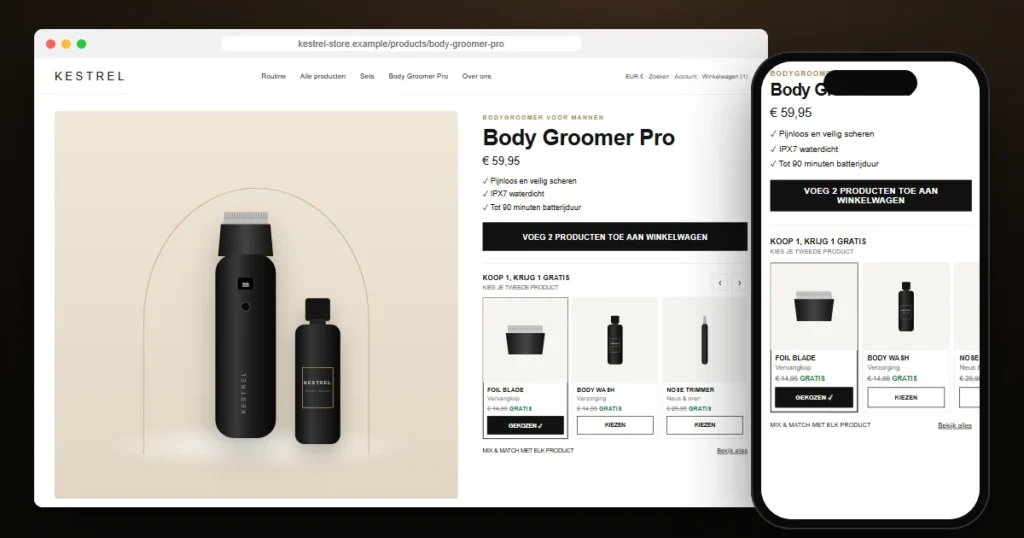
The second message from the grooming brand we call Kestrel arrived a few weeks after the custom sections project. It was a single screenshot of a jewellery store’s product page with a row of cards under the add-to-cart button: Buy 1 get 1 free, choose your second piece. The question underneath was short: can we have this on our product pages?
A Shopify buy one get one free offer is easy to switch on in the admin. Getting shoppers to actually use it is the hard part. This case study shows how we built the picker, why we did not copy the reference store’s code, and the one Shopify setting that makes the second product free.
About this case study: it is a composite based on real Shopify project work. The brand name, product photography and some details have been changed, and the product images are illustrations. The code patterns, problems and fixes are exactly as we handled them.
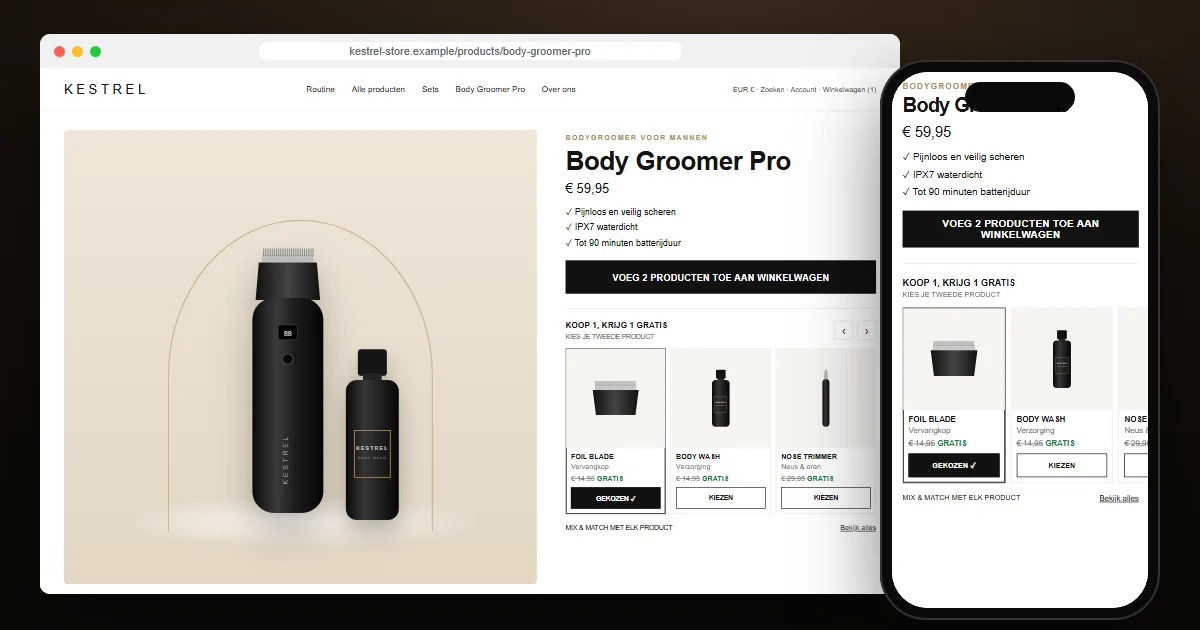
The project at a glance
| Client | Direct-to-consumer men’s grooming brand, Netherlands (Dutch storefront, EUR) |
| Platform | Shopify Online Store 2.0, existing premium theme kept in place |
| Scope | 1 snippet, 1 stylesheet, 1 script, 1 new product-page block, no apps |
| Discount | Native Shopify automatic discount (Buy X get Y) |
| Delivery | Installed by the merchant through the theme code editor, file by file |
Why a native BOGO discount is not enough
Shopify has supported Buy X get Y discounts for years. Set one up and the cart applies it as soon as the right products are in it. The problem is the word as soon as. The shopper has to know the offer exists, leave the product page, find an eligible product, add it and come back. Most do not. A banner that says “1+1 free” without a way to act on it mostly produces support emails asking why the discount did not work.
The reference store had solved this with a picker: eligible products shown right where the buying decision happens, one tap to choose, and the main button changing to Add 2 products to cart. That is the experience Kestrel wanted.
Reading the reference, then putting it away
The merchant sent along the reference store’s CSS, JavaScript and HTML. It was a careful piece of work: around 400 lines with bottom sheets, a browse-all overlay, background-colour detection for product photos and its own add-to-cart request. It was also written for a different theme, a different form and a different cart drawer, and it belonged to someone else.
So we used it as a description of the behaviour, not as code. Before writing anything, we read the product form in Kestrel’s theme. That turned out to be the most valuable hour of the project.
The discovery: the theme already knew how to add two products
The theme’s product-form element has a feature for “frequently bought together” checkboxes. On submit, it collects every checked input[name="bundles"] inside an element linked to the form, and sends them to /cart/add.js together with the main product. It also handles the cart drawer, the cart-page mode, error messages and the sticky add-to-cart button.
That meant the picker did not need its own cart request at all. Each card holds a hidden checkbox named bundles, and the picker element carries the form’s id:
<bogo-picker form="{{ product_form_id }}">
  <label class="bogo-card__btn">
    <input type="checkbox" name="bundles" value="{{ variant.id }}" class="sr-only">
    <span>Choose</span>
  </label>
</bogo-picker>
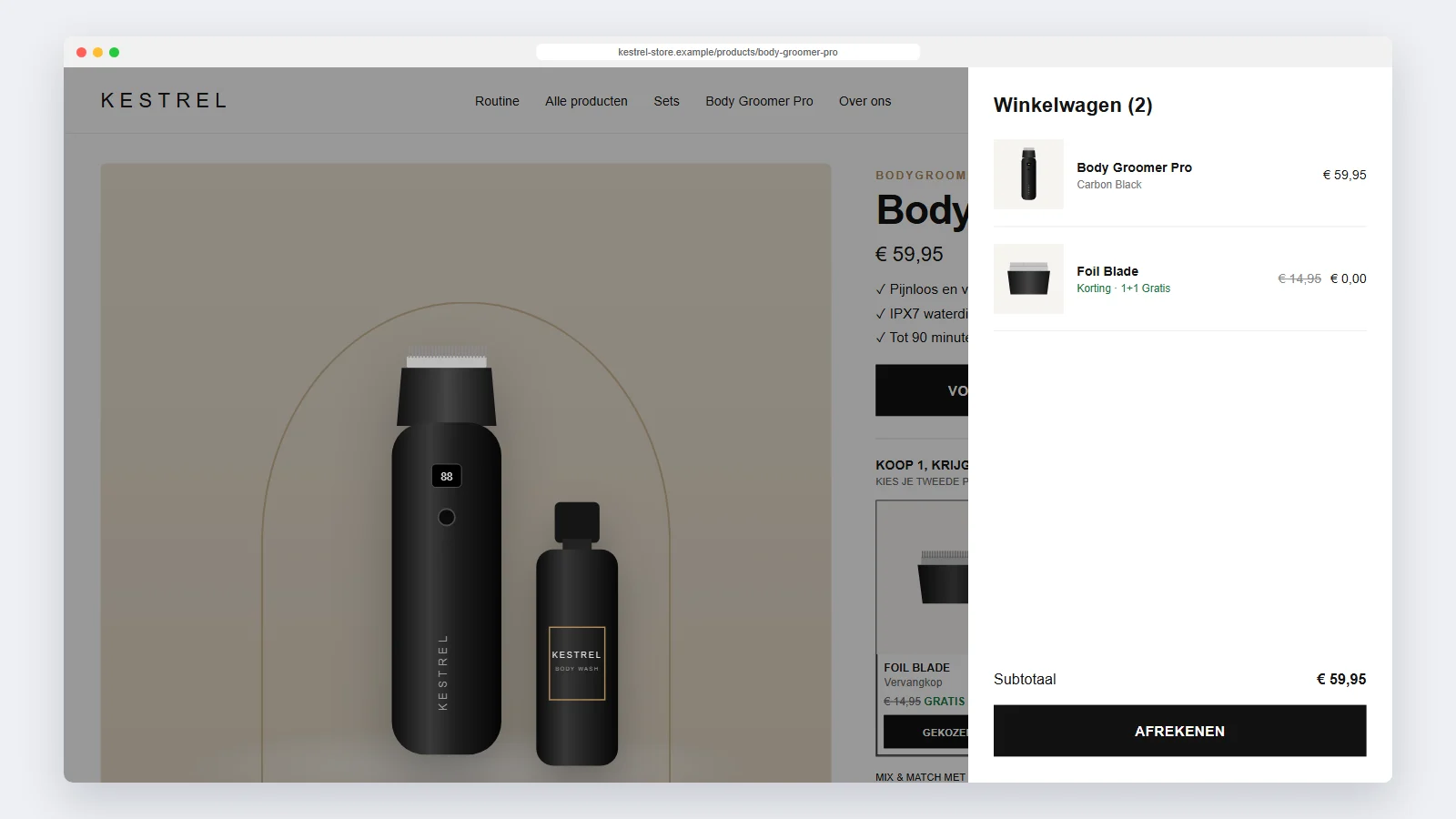
Choose a card and its checkbox is checked. Press the main button and the theme adds both products in one request, opens its own cart drawer and updates the cart count, exactly as it does for every other product. The JavaScript we wrote is about a hundred lines, and none of it touches the cart.
The details that make it feel native
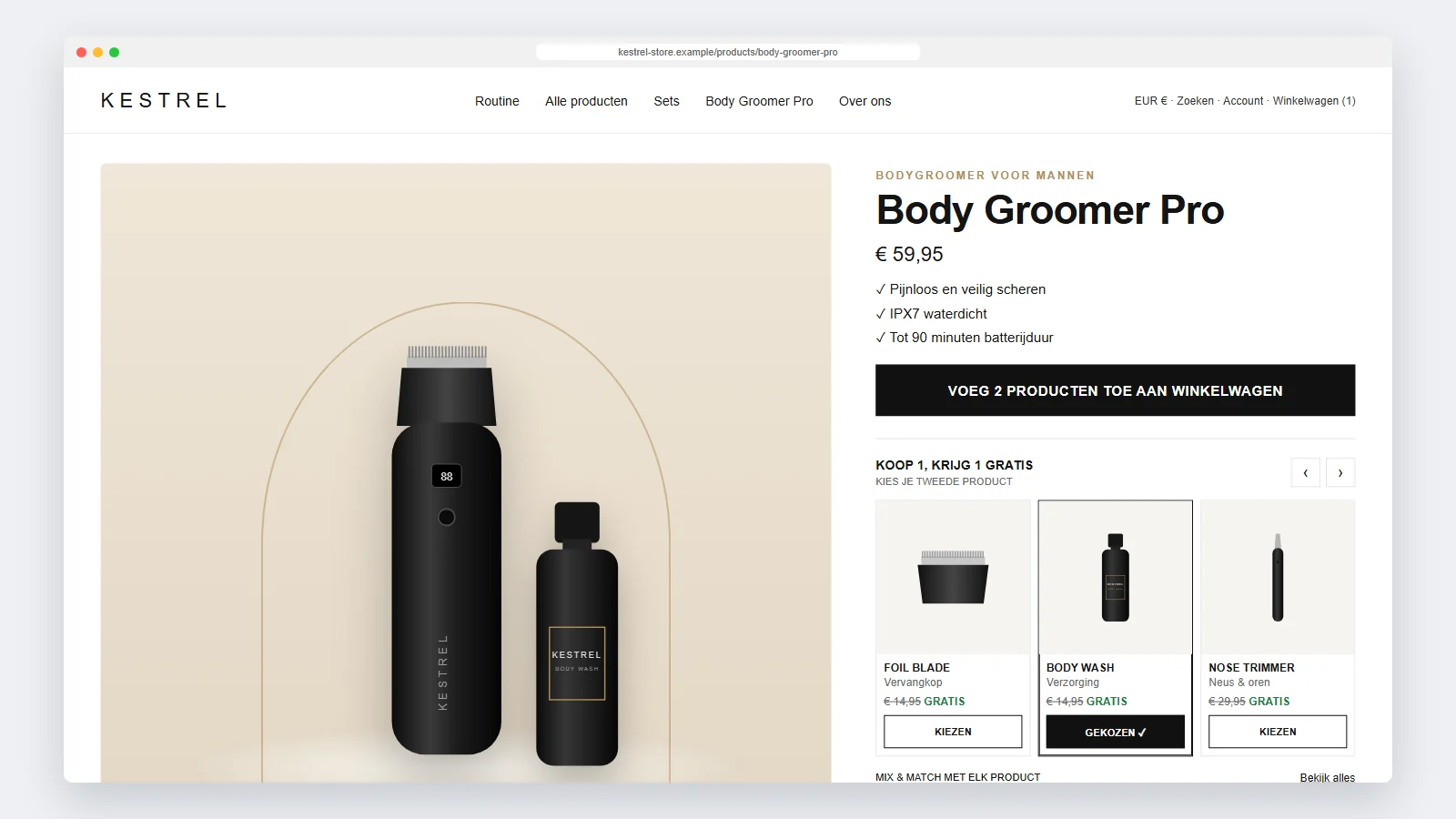
- One free product at a time. Checking a card unchecks the others, so a shopper cannot add three free items by accident.
- A button that says what will happen. When a card is chosen, the add-to-cart label changes to “Add 2 products to cart”. The theme resets that label whenever a variant changes, so a small
MutationObserverputs it back. - Variants on the card. Products with more than one variant get a compact dropdown, and the checkbox value follows it.
- Aligned cards. The cards share grid rows through CSS subgrid, so names, prices and buttons line up even when one product name wraps to two lines.
- Mobile first. On phones, 2.3 cards are visible so the next one peeks in from the edge; on desktop three cards show with arrow buttons.
- A clean reset. After a successful add, the picker listens to the theme’s
cartUpdateevent and clears the selection.
The block is added in the theme editor like any other product-page block. The merchant picks a collection of eligible products, or a product-list metafield for product-specific offers. Labels such as “Free”, “Choose” and the two-product button text are settings. The current product and sold-out products are left out automatically.
Making the second product actually free
The picker only puts two products in the cart. The price is handled by Shopify, through an automatic discount:
- Create a collection with the products that may be given away, for example “BOGO Free”.
- In Discounts, create a Buy X get Y discount with the method Automatic.
- Customer buys: minimum quantity 1 from a collection containing all paid products.
- Customer gets: quantity 1 from “BOGO Free”, at the value Free.
- Tick Set a maximum number of uses per order and enter 1, otherwise three purchases give three free products.
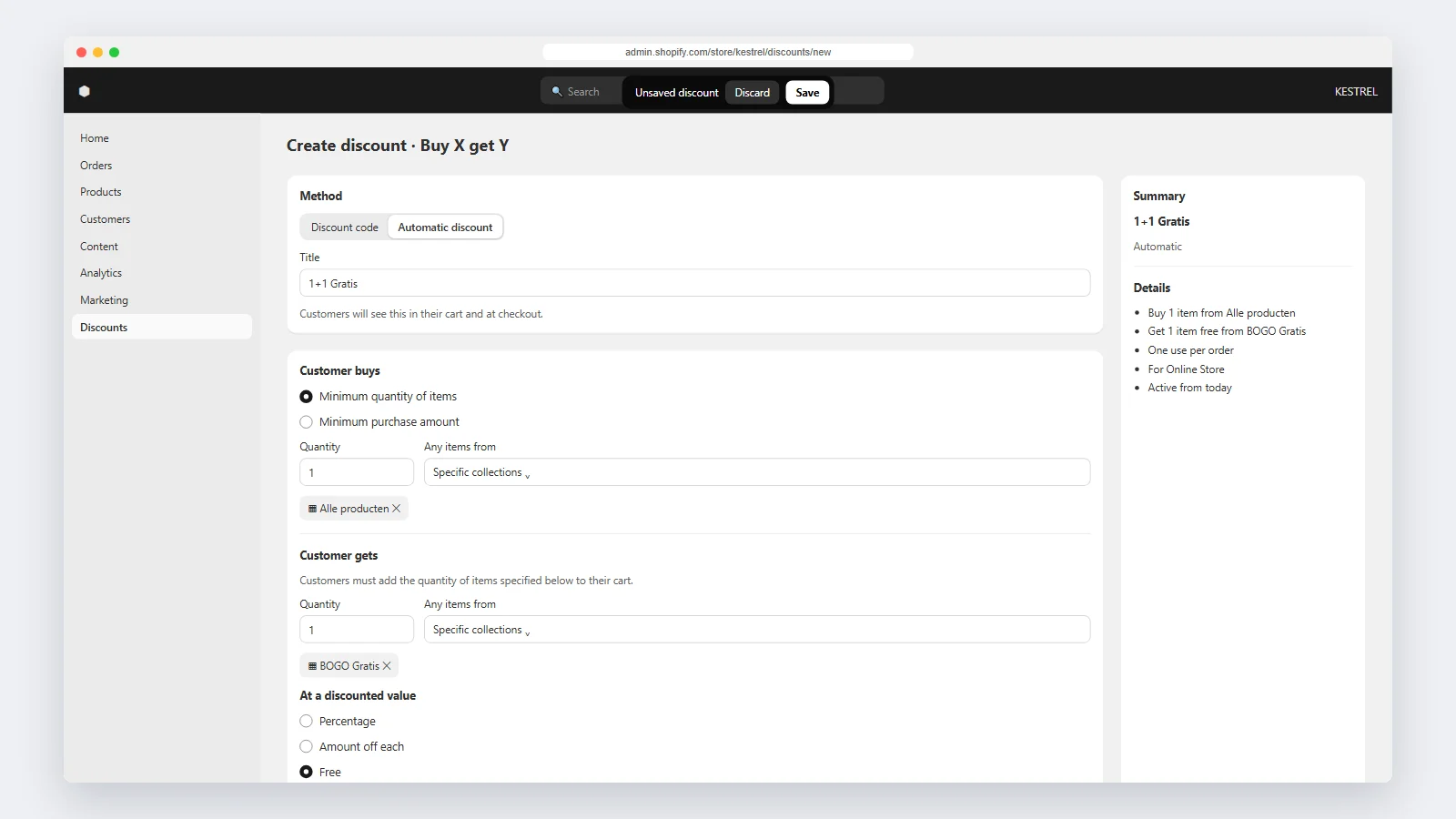
Shopify has no “all products” option in the Customer buys field, so a collection is needed there. An automated collection with the condition “price is greater than 0” keeps itself up to date. One edge case is worth knowing: if the free products are also in that collection, buying two items from “BOGO Free” gives one of them free. For most stores that is fine. If not, tag the BOGO products and exclude the tag in the automated collection’s conditions.
Installing without uploading a theme
Kestrel’s live theme had other unpublished work in progress, so uploading a new theme version was not an option. We delivered the feature as five precise steps for the theme code editor: three new files (a snippet, a stylesheet and a script) and two small additions to the product section, one render line and one block schema entry. Each step said exactly which line to search for and what to paste above it. Because every change is additive, it survives the next theme update with a few minutes of work.
We also made a simple thumbnail for the “BOGO Free” collection, so the collection looks finished wherever the theme shows it.
What we would tell any store considering BOGO
- Put the choice where the decision happens. An offer the shopper has to assemble alone is an offer most shoppers skip.
- Read your theme before you write code. The best line of code in this project is the one we did not have to write, because the theme already added bundles to the cart.
- Keep the price logic in Shopify. A native automatic discount works in the cart, at checkout and in every report, and it can be paused without touching the theme.
- Limit uses per order from day one.
If you would like a buy one get one free picker, a bundle builder or another custom product-page feature on your store, have a look at our Shopify theme development service or tell us about your store.
Frequently asked questions
Does Shopify support buy one get one free without an app?
Yes. Buy X get Y automatic discounts are built into Shopify. What Shopify does not provide is a way for shoppers to choose the free product on the product page, which is what the picker adds.
Will the picker work with my theme?
The idea works with any Online Store 2.0 theme. The implementation depends on how your theme’s product form adds products to the cart. In this theme we reused its bundle feature; in other themes we add both items with one request to the Cart API.
Can the free product have variants?
Yes. Products with several variants show a small dropdown on the card, and the chosen variant is the one added to the cart.
Can shoppers abuse the offer?
The discount itself decides what is free, not the picker. With a maximum of one use per order, a shopper can never get more than one free product in a single order.
Can I show different free products on different products?
Yes. The block reads a collection by default, and a product-list metafield can override it per product.